
Summary:
This guide shows you how to log in to your hosting control panel (cPanel) to manage your website, email, and files.
Option 1: Log in through the Client Area
-
Login to your EasyHost Client Area
Go to EasyHost Client Login and enter your details.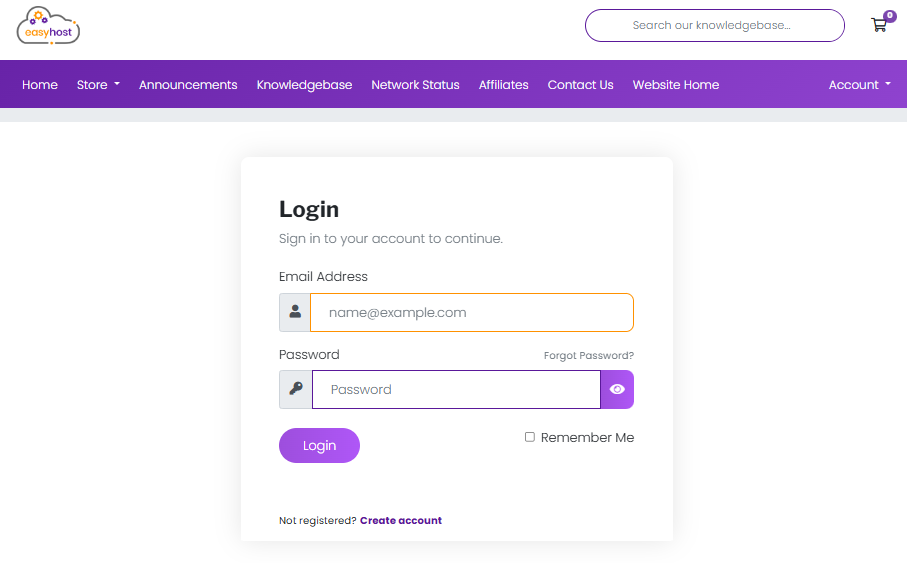
-
Access your hosting service
From the dashboard, click Services and select your shared hosting package.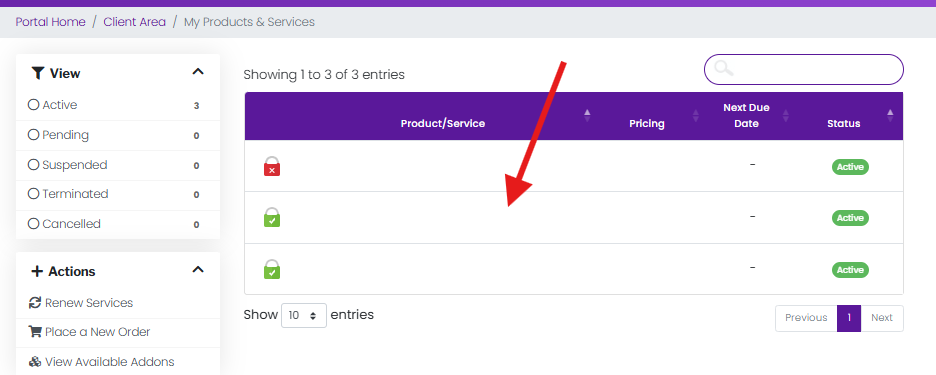
-
Login to cPanel
Click Login to cPanel for your hosting service. This will take you directly to the control panel where you can manage your website, databases, email accounts, and files.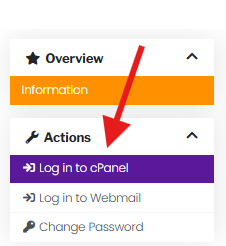
Option 2: Log in Directly
You can also log in directly using your domain URL:
- https://yourdomain.com:2083
- https://cpanel.yourdomain.com
Use your cPanel username and password. If you don’t have these credentials, you can request them from EasyHost support.
Troubleshooting
- Domain not working yet: Your domain may not be fully propagated. Try using the server IP instead, which you can find in your hosting details.
- Forgot cPanel password: Use the “Reset Password” option in the Client Area, or contact support for a password reset.
- Login fails repeatedly: Clear your browser cache or try a different browser. Ensure you are using the correct port (
2083) for secure cPanel login. - Connection issues: If your network blocks port 2083, try logging in via the Client Area instead.
Tips & Tricks
- Bookmark your cPanel login URL for quick access in the future.
- Always use a strong, unique password for security.
- Enable two-factor authentication in cPanel for added protection.
- If managing multiple domains, label or note the cPanel login for each domain to avoid confusion.
Need Help?
If you have trouble logging in or accessing your cPanel, please open a support ticket and our team will assist you.
