
Understanding Disk Space and Bandwidth Limits
At EasyHost, it’s important to understand the resources your website uses. Two of the most common metrics are disk space and bandwidth. Knowing what these mean helps you avoid issues like your website slowing down or exceeding limits.
Why Disk Space and Bandwidth Matter
- Disk Space: Limits how many files and data your website can store. Exceeding it can prevent new uploads or website updates.
- Bandwidth: Measures data sent to visitors. Exceeding it can slow down your site or trigger temporary suspension.
Step-by-Step Guide: Check Disk Space and Bandwidth
-
Login to your EasyHost Client Area
Go to EasyHost Client Login and enter your details.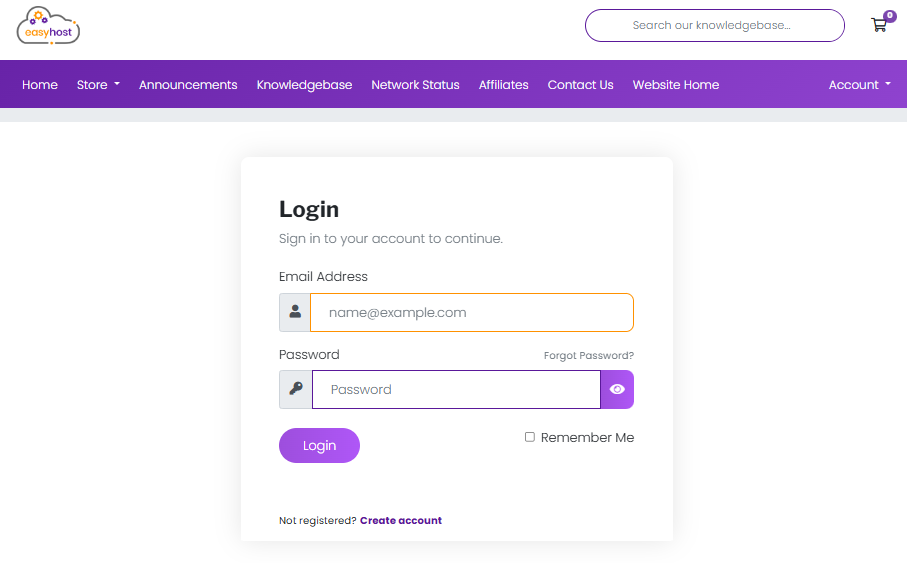
-
Access your hosting service
From the dashboard, click Services and choose your shared hosting package.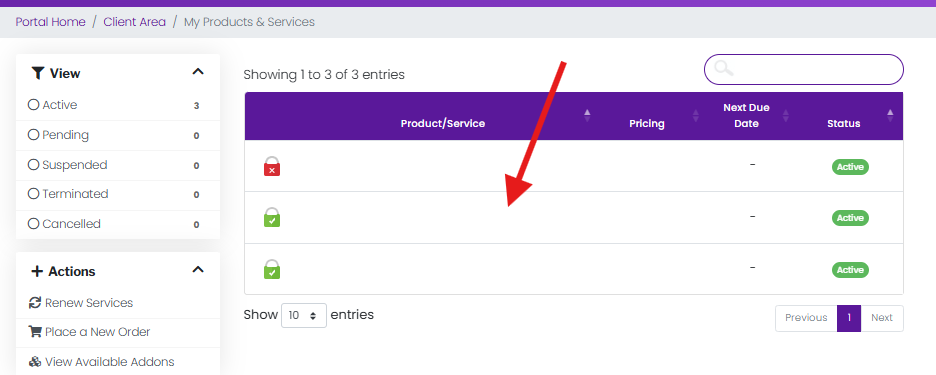
-
Login to cPanel
On your hosting service page, click the Login to cPanel button.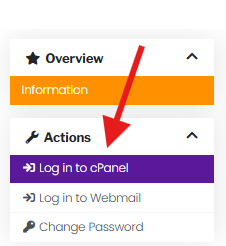
-
Check Disk Usage
In cPanel, scroll to the Files section and click Disk Usage. You will see how much disk space your website files are using.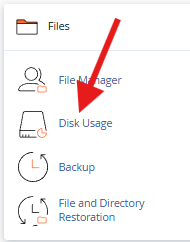
Leads to th disk usage screen (Below).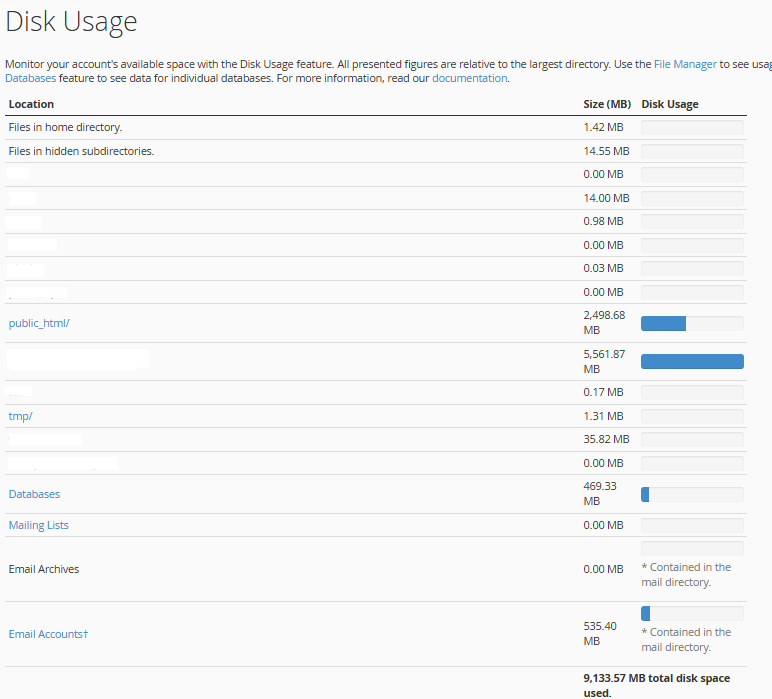
-
Check Bandwidth
Scroll to the Metrics section in cPanel and click Bandwidth. This shows the amount of data your website has transferred over time.
Leads to bandwidth page (Below).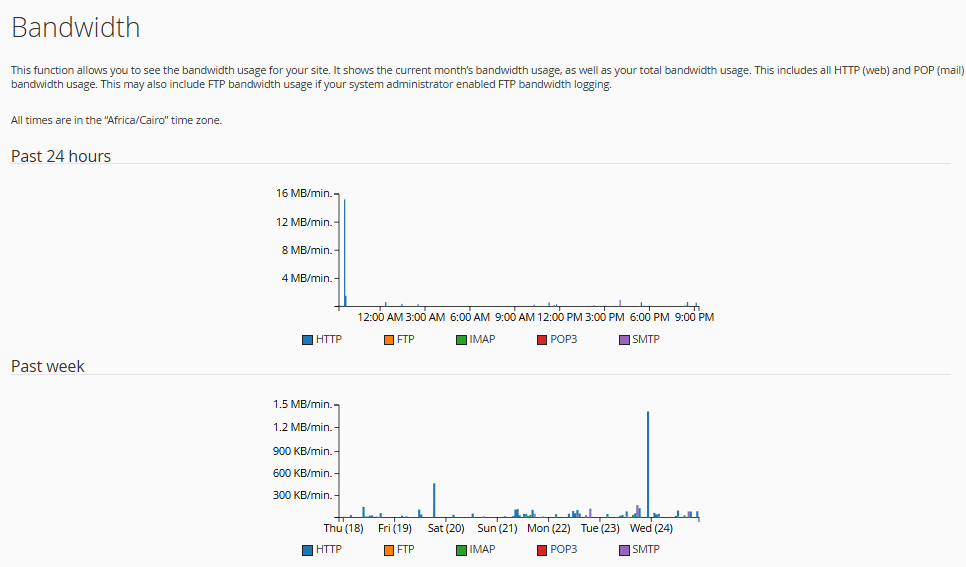
That’s it! You now know how to monitor your disk space and bandwidth on your shared hosting account.
Tips & Common Issues
Disk space warnings:
- Delete unused files, emails, or backups to free space.
- Consider upgrading your hosting plan if you frequently reach the limit.
Bandwidth warnings:
- Large files or high traffic can quickly use bandwidth. Monitor regularly.
- Use caching or a CDN to reduce bandwidth usage.
Still stuck?
Open a support ticket, and our team will be happy to help: Submit a Ticket.
✅ By keeping an eye on disk space and bandwidth, you can ensure your website runs smoothly and avoid service interruptions with EasyHost shared hosting.
